For Meta Quest 3 · Free

Record your Quest
the way it feels.

CineQuest records a wider, Cinematic view straight from your headset, then copies every clip to your PC on its own, sorted into a folder per game.

Download for Windows Read the setup guide

CineQuest-Setup.exe · 83 MB · Windows 10 or 11 (64-bit) · Installs the headset app over USB
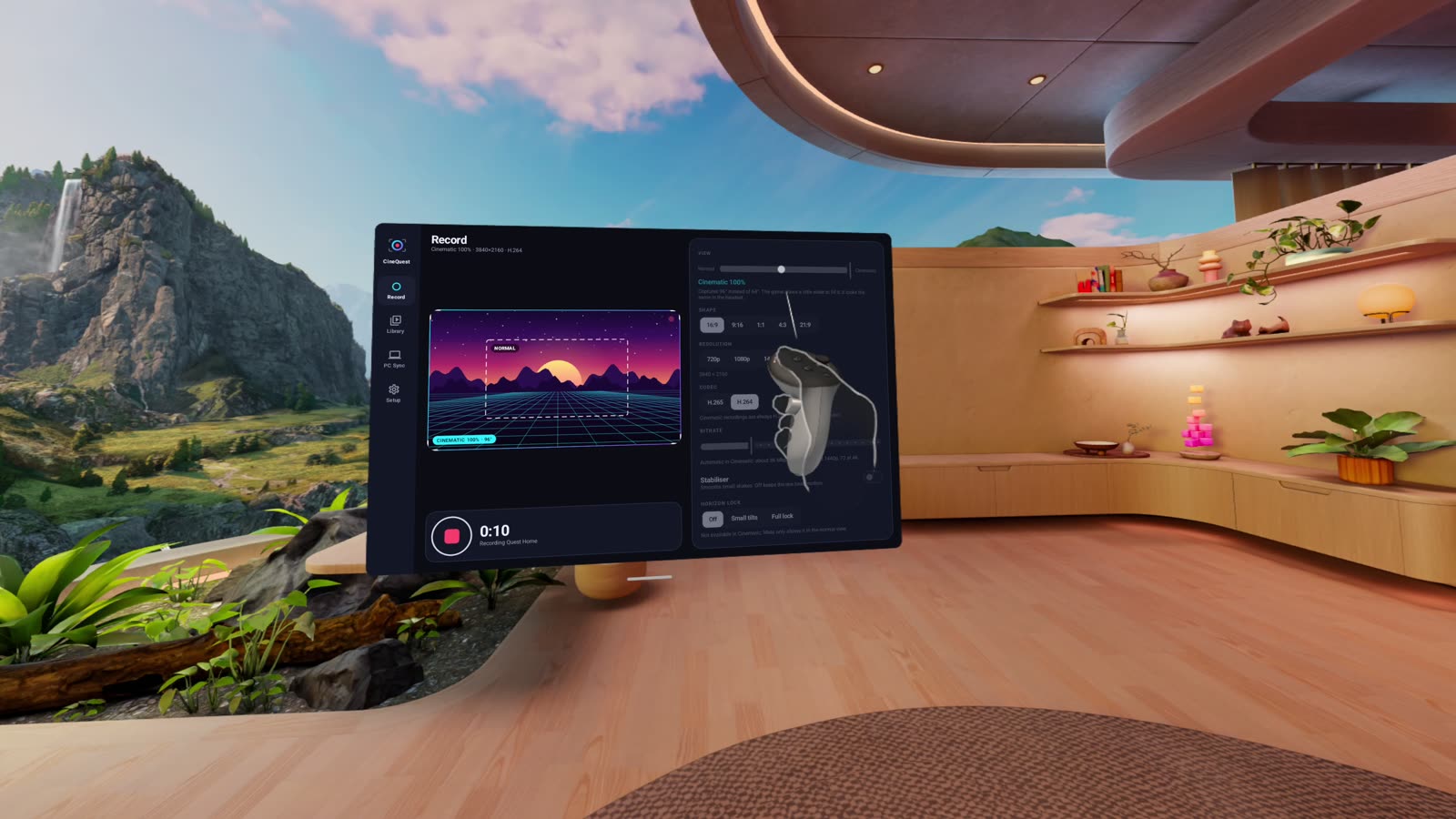
A real CineQuest Cinematic recording in Quest Home, with the CineQuest Record screen floating in the room
NORMAL QUEST RECORDING
Cinematic 100%
REC
NormalCinematic 100% · 96°Cinematic

Drag the slider. The picture is a real, untouched Cinematic recording from CineQuest; the dashed box is how much a normal Quest recording would have caught.

How it works

Set it up once. Then just play.

One download on your PC does the whole setup. After that, everything happens in the headset and your clips find their own way home.

1

Install from your PC

Run the setup and plug in your Quest with a USB-C cable. It installs CineQuest on the headset for you and sets up the PC app.

Meta Trigger
2

Record in the headset

Hold the Meta button and pull the trigger, the same shortcut you already know. CineQuest records it in Cinematic. A chime tells you it started and stopped.

📁 Videos\CineQuest
  📁 Beat Saber
    ▶ BeatSaber_…_cinematic.mp4
  📁 Quest Home
3

It's on your PC

Each clip is filed under its game on the Quest, then copied to your PC over Wi-Fi as soon as it's saved. No cables, no hunting through folders.

Features

Everything you'd want from a recorder.

All of it set from a clean, simple screen in the headset, with a live preview that shows exactly what will be in the shot.

Normal to Cinematic

A slider sets how wide the recording is, from the normal view up to Cinematic: 96° across instead of 64°, about 1.8× more of the scene.

Up to 4K

720p, 1080p, 1440p or 4K (3840 × 2160) with the bitrate set for you or by hand. Cinematic records at 60 frames a second.

Portrait and more

16:9, 9:16 for Shorts, Reels and TikTok, 1:1, 4:3 or ultra-wide 21:9.

Your shot, your way

The stabiliser is off unless you want it. Horizon lock keeps normal-view recordings level when you tilt your head.

Filed by game

Every clip is named and sorted by the game it came from. Menu and Quest Home recordings get their own folder.

Copies itself to your PC

A small tray app pulls new clips over Wi-Fi as soon as they're done. It can also clear them off the Quest to free up space.

Setup guide

Up and running in about 10 minutes.

You'll need your Quest 3, a Windows PC, a USB-C cable that carries data (the one that came with the Quest works), and the Meta Horizon app on your phone.

1

Turn on Developer Mode

This is a one-time switch that lets your PC install apps on your headset. It's free and doesn't change anything else.

  1. Open the Meta Horizon app on your phone and make sure your headset is on and nearby.
  2. Tap Menu, then Devices, and pick your headset.
  3. Tap Headset settings, then Developer Mode, and turn it on.
  4. Restart your headset.
The first time, Meta asks you to create a free developer organisation and verify your account. Follow its prompts, then come back to the switch. Meta's own guide
Devices › Quest 3 › Headset settings
Developer Mode
Developer ModeInstall apps from your computer
Wi-FiConnected
Controllers2 paired
Advanced settings
2

Download and run the setup

  1. Click Download for Windows and open CineQuest-Setup.exe.
  2. If Windows shows "Windows protected your PC", click More info, then Run anyway.
Windows shows that warning for any app from a small developer that hasn't paid for a code-signing certificate. CineQuest doesn't need administrator rights and installs only for your Windows account.

Windows protected your PC

Microsoft Defender SmartScreen prevented an unrecognised app from starting. Running this app might put your PC at risk.

More info

App: CineQuest-Setup.exe
Publisher: Unknown publisher

Run anywayDon't run
3

Plug in your Quest and allow your PC

  1. Connect the Quest to your PC with the USB-C cable and put the headset on.
  2. When it asks "Allow USB debugging?", tick Always allow from this computer and choose Allow.

The setup on your PC ticks off Connect your Quest as soon as it sees the headset.

Don't see the prompt? Unplug the cable and plug it back in, or take off the headset and put it back on. The prompt sometimes hides until you look around.

Allow USB debugging?

The computer's RSA key fingerprint is:
3F:A1:9C:52:7E:0B:D4:88:21:6C:5A:E9:10:B7:44:2D

✓ Always allow from this computer
DenyAllow
4

Click "Install on my Quest"

The setup copies CineQuest to the headset. It takes a few seconds. You don't need to do anything in the headset for this part.

CineQuest Setup– ▢ ✕
✓
Connect your QuestQuest 3 connected.
2
Install CineQuest on the QuestReady. Click Install on my Quest.
3
Let CineQuest control recording
4
Copy recordings to this PC (optional)
5

Let CineQuest control recording

To drive the Quest's recorder, CineQuest needs the same kind of permission your PC just got. The PC setup shows these steps too.

  1. Put the headset on and open CineQuest. It's in your Library, under Unknown sources.
  2. The headset asks "Allow USB debugging?" again. It looks the same as before, but this one is for CineQuest.
  3. Tick Always allow from this computer and choose Allow.

The PC setup notices straight away and moves on. This is the only time you'll be asked.

No prompt? Close CineQuest and open it again.

Allow USB debugging?

The computer's RSA key fingerprint is:
8D:02:E7:3B:C9:61:5F:A0:4E:17:B8:D3:92:6A:0C:F5

✓ Always allow from this computer
DenyAllow
6

Choose where your recordings go

  1. Leave Also install CineQuest PC on to have every recording copied to this PC automatically.
  2. Click Change… if you want a different folder. Each game gets its own folder inside it.
  3. Click Finish. The PC pairs with your headset by itself and CineQuest moves into your system tray.
Keep your Quest and your PC on the same Wi-Fi network. The PC app starts with Windows, so clips keep arriving without you opening anything.
CineQuest Setup– ▢ ✕
✓
Install CineQuest on the QuestInstalled.
✓
Let CineQuest control recordingDone. CineQuest is ready in the headset.
Also install CineQuest PCRuns in the tray and copies each new recording over Wi-Fi.
SAVE RECORDINGS TOVideos\CineQuest
Change…
Finish
Copied to your PCBeat Saber: BeatSaber_2026-10-26_20-14-02_cinematic.mp4
ENG20:15
7

Record

That's it. Two ways to record:

  • Shortcut: hold the Meta button and pull the trigger to start, and again to stop. CineQuest records it in Cinematic and tidies away the normal clip Meta would have made.
  • In the app: open CineQuest from your library, pick your settings and tap the record button. Recording starts straight away, so menus are captured too.

Listen for the chimes: a short one when recording starts and a different one when it's saved. Clips land in Movies/CineQuest on the Quest and in your chosen folder on the PC.

CineQuest · RecordCinematic 100% · 3840 × 2160
NORMAL
CINEMATIC 100% · 96°
0:42
Recording Beat Saber
In the headset

Every setting, explained.

Open CineQuest in your headset to change any of these. The preview updates as you go.

ViewSlide from Normal to Cinematic. Wider shows more of the world; the game draws a little extra to fill it, so it looks the same in your headset.
ShapeThe frame of the video.
16:99:16 portrait1:14:321:9
ResolutionHow sharp the video is.
720p1080p1440p4K
Codec and bitrateH.265 makes smaller files at the same quality in the normal view; Cinematic always uses H.264. Leave bitrate on automatic or set it yourself.
StabiliserOff by default, which keeps your real head motion. Turn it on to smooth out small shakes.
Horizon lockOff, Small tilts or Full lock. Keeps the horizon level when you tilt your head. Normal view only.
Start recordingRight away (records menus too) or When I'm back in a game, so you can tap Record and then jump in.
Auto-stopStops on its own after a set time, so a forgotten recording doesn't fill your headset.
ShortcutChoose whether the Meta button shortcut records in Cinematic with CineQuest or works as Meta's normal recorder.
FAQ

Questions

Is it free?

Yes. CineQuest is a free, personal project.

Which headsets does it work on?

It's made and tested on Meta Quest 3. It needs Developer Mode turned on.

Do I need my PC every time I record?

No. The PC is only needed once, for setup. After that CineQuest works on its own in the headset. The PC app is only there to copy your clips over, and it's optional.

Does Cinematic make my game look different?

No. What you see in the headset stays the same. The game draws a little extra around the edges so the recording can show more.

Why is there no horizon lock in Cinematic?

Meta only allows horizon lock in its own normal recorder, so CineQuest offers it for normal-view recordings. Cinematic recordings keep your natural head movement.

Where are my recordings?

On the Quest they're in Movies/CineQuest, a folder per game. On your PC they're in the folder you picked during setup, Videos\CineQuest unless you changed it. Right-click the CineQuest icon in your tray and choose Open recordings folder.

My recordings stopped copying to my PC.

Check that the Quest and PC are on the same Wi-Fi and that CineQuest PC is running in the tray. Open it from the tray to see the headset's status, or click Sync now.

How do I set up a second headset?

Right-click the CineQuest icon in your tray and choose Set up another headset…, then follow the same steps.

How do I uninstall it?

On the PC, go to Settings › Apps › Installed apps and uninstall CineQuest PC; your recordings stay where they are. In the headset, uninstall CineQuest from your library like any other app.

Ready to see more?

One download, one cable, about ten minutes.

Download for Windows

CineQuest-Setup.exe · 83 MB · Windows 10 or 11 (64-bit)